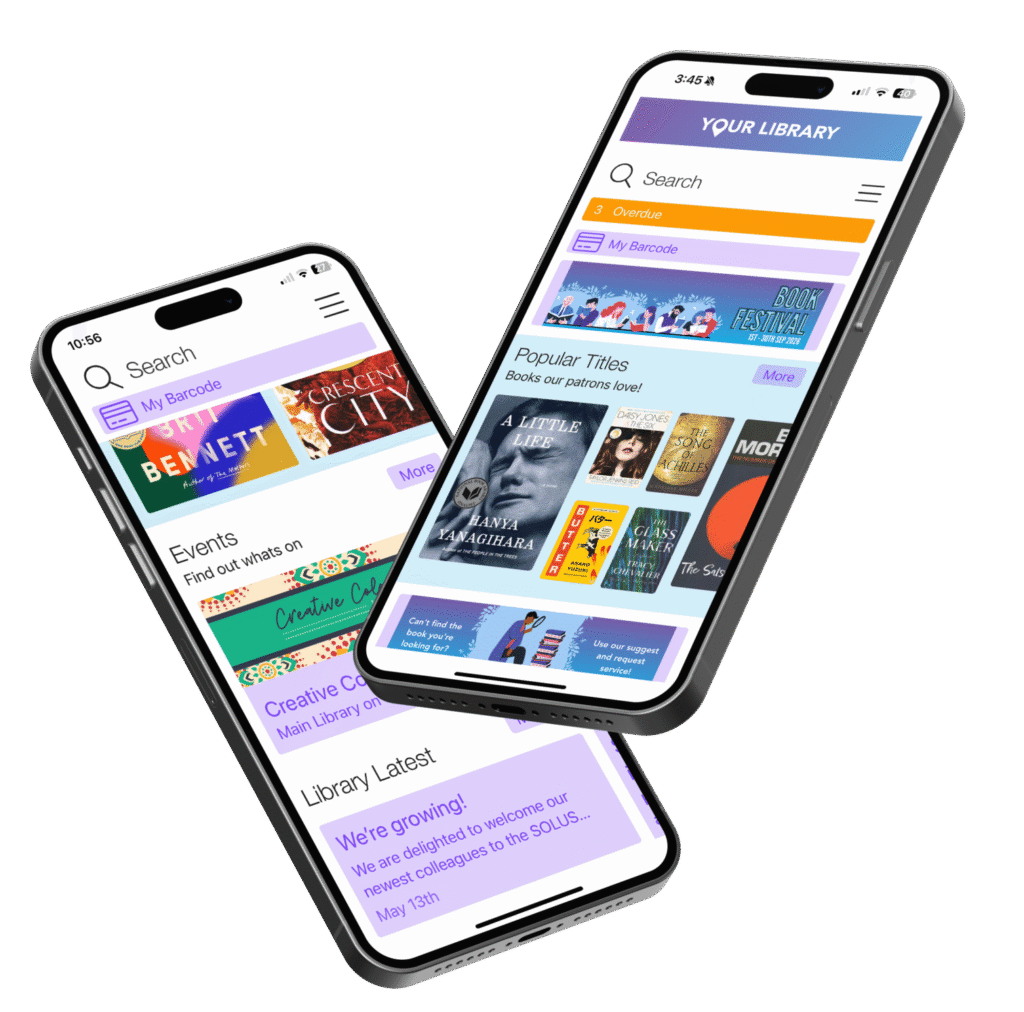
Thanks for visiting our support page. We’re dedicated to delivering exceptional service and technical expertise to help you resolve issues quickly and keep your systems running smoothly.
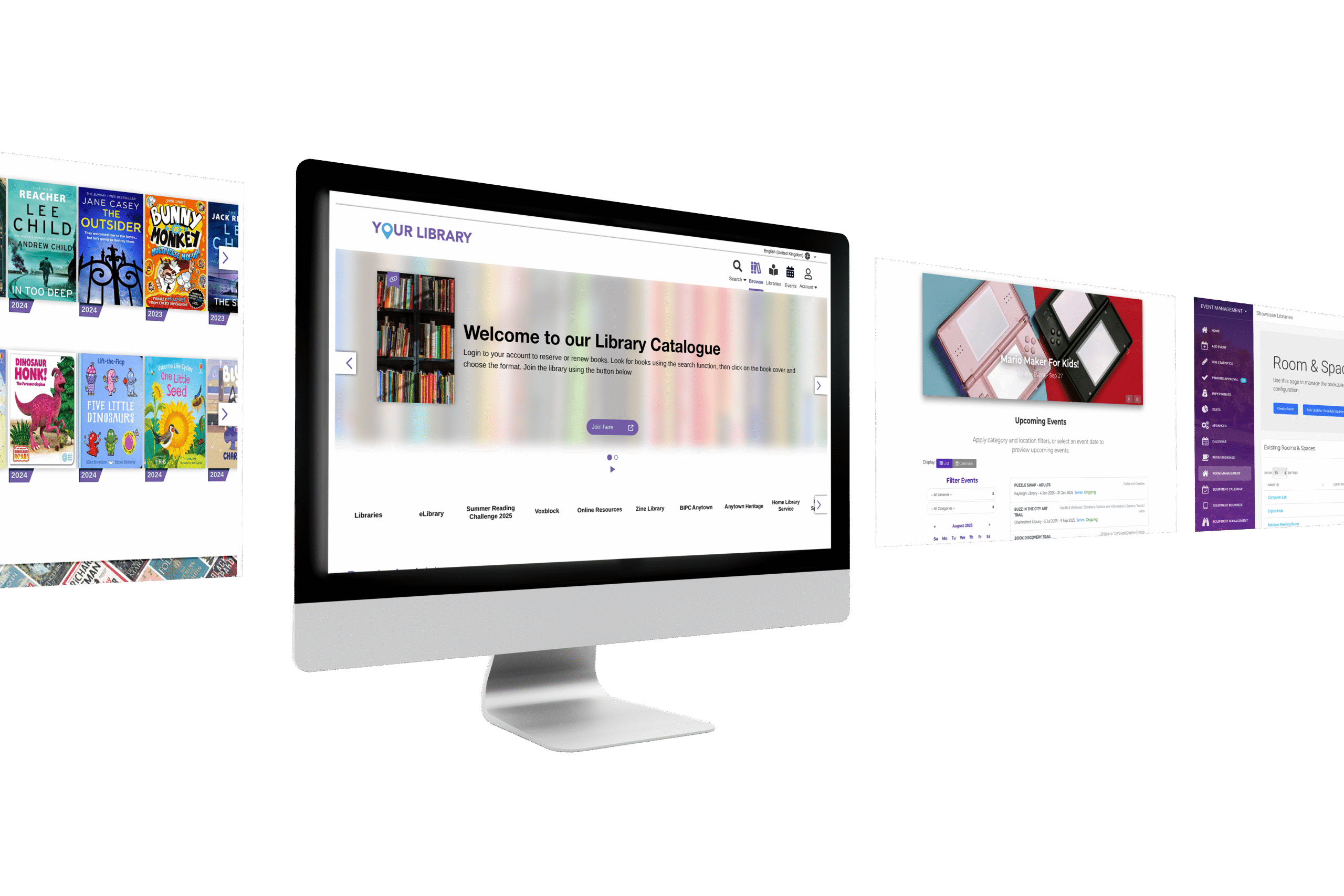
The worlds #1 full service library app
We suggest starting with our online Suppport Hub. Here you will find,
- Product Documentation
- Tutorials & Guides
- Updates & Announcements
Our best practice guides will get you on your way to making your app look its best
Our FAQ section is here to help with quick, clear answers to the questions we hear most often. It’s a handy place to find solutions and tips without any fuss. If you don’t see your question listed, no worries— just reach out to us and we’ll be happy to help.
If you have questions about setup, run into something unexpected, or just want a bit of extra guidance, our team is heare to help. Reach out anytime at support@solus - we've got you covered.
Your apps, both in the Apple App Store and the Google Play Store, will update automatically for you when a new version is released. There is no downtime or action required for you or your patrons.
The only time your action is required is if there is an outstanding Apple Developer Program license agreement that has not been accepted. If an agreement is pending, it prevents Solus from pushing the latest version of the app to the Apple App Store on your behalf. To avoid delays, please ensure that any required agreements are reviewed and accepted promptly.
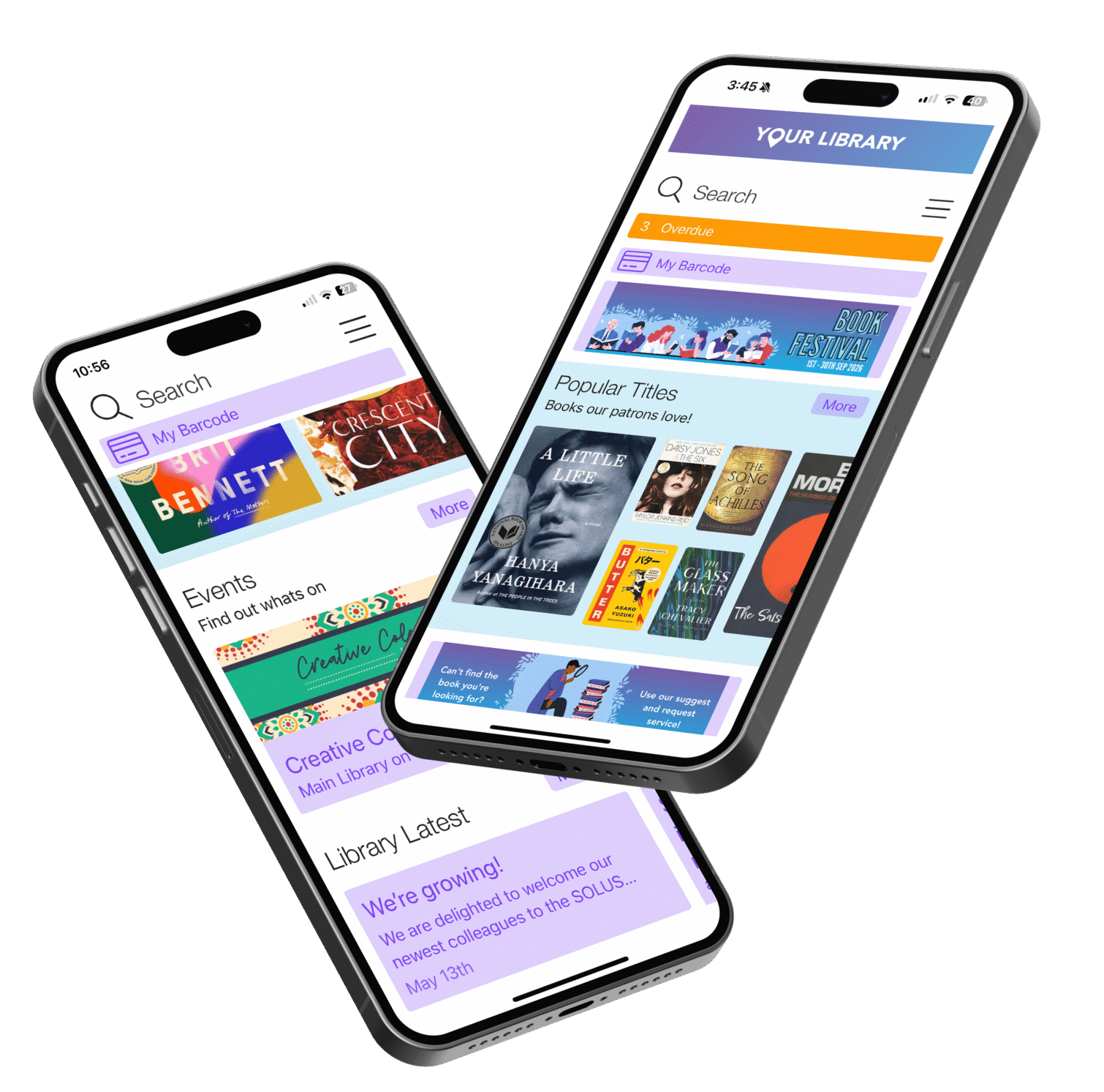
Our innovative app is specifically tailored for library consortiums, empowering each library to showcase its unique brand—all within one seamless download. When patrons install the app and log in, they are greeted with a personalized template designed for their home library. This not only highlights each library’s distinct identity but also ensures a consistent and convenient user experience on a unified platform. Enhance your library’s presence today and engage your patrons like never before!
Your app is marked as 17+ because it can link out to external services like YouTube. To learn more about how Apple defines the age rating, please refer to their Age rating page for more information.
Apple has a 100-character limit for keywords. Spaces and commas do count toward the limit.
Google doesn’t allow for “keywords” to be provided. Instead of providing a keyword field like Apple does, Google takes the keywords from the app description. There are three main areas in the app’s metadata where you can target keywords: the title, long description, and short description.
When deciding what app to return when a search has been conducted, the Google Play algorithm will consider the app’s performance data. App downloads are a strong ranking signal on the Play Store. The Play Store will consider an app that is driving a lot of daily downloads to be relevant. The number of these downloads, among other things, will play a big part in where the app ranks in the search results.
Apple does search results based on the keywords provided, among other things.
Unlike Apple, Google allows Solus to manage multiple library apps under a single Google Play Developer account. This means that libraries do not need to create or maintain their own individual Google Play Developer accounts. Solus can handle the app submission, updates, and overall management for all libraries under our account. This streamlined approach makes it easier for libraries to focus on using the app while Solus takes care of the technical aspects of managing the app on the Google Play Store.
There is no limit on how many users you can create.
Yes, the Content Management System provides access to app usage reports. While we do not store any personally identifiable information (PII), you can still review general statistics that show how patrons are interacting with the app. To learn how to generate this report, please refer to the Generate an Activity Report to learn more.
The flag icons indicate that the field supports translation. Click the icon to enter translated text for any of the languages you’ve enabled in the Content Management System.
The app can be translated into 30+ different languages. To learn more about how to configure this, and what languages are offered, please refer to the Edit Languages page for more information.
Yes. The option for your Theme Preference was released with 2025.24.
In some cases, the Nuggets Tab may appear in a single-column layout rather than the usual multi-column format. This typically happens on smaller screens, when accessibility settings (like large text or display scaling) are enabled, or when the Nugget text is particularly long.
The Solus Library App uses a responsive design, meaning it adjusts based on screen size and content. When the text in a Nugget is lengthy, the layout will often shift to a single column to maintain readability and avoid truncation.
This was by design with the 2023.1 update to increase our backend security especially after the attempted DDoS attacks we experienced at the start of 2023. This reduces hackers’ ability to spam an app and make unnecessary API calls to the ILS. Issues were amplified during the attempted attacks as it was adding additional load on the ILS servers to the excessive API calls that were being made. In the new version, any request that requires an ILS API call requires the patron to sign in first.
The app features two distinct login pages to enhance user experience and functionality. The first login page includes a barcode scanner, allowing patrons to quickly scan their library cards for easy access. This feature is exclusively available within the app, as it leverages the device’s camera for scanning.
The second login page is designed for Single Sign-On (SSO) access. This is necessary for security and integration with library systems. Since the SSO page loads in an in-app browser, it does not support the barcode scanning feature. By separating the two login options, we ensure that patrons can choose the method that best suits their needs while maintaining a smooth and secure login process.
The app Icon Image is not something that can be updated through the Content Management System alone. Because the icon is part of the app bundle submitted to Apple and Google, changing it requires a new build to be created and submitted for review and approval by both platforms.
To request an icon update, please contact Solus Support. We’ll help coordinate a new build and ensure your updated branding is reflected correctly.
The Icon Image is used in two key places:
App Store and Google Play listings, where users see your app before downloading it.
On a user’s device, as the shortcut icon that appears on the home screen or in the app drawer after installation.
Yes, you can streamline the login process into a single screen by removing the option for patrons to scan the barcode on their library card during authentication. To do this, you’ll need to disable the Card Scan option in the app configuration. For step-by-step instructions, see the Configure Patron Account Options help guide — specifically step 3.
When you add an Events Tab to your app, the Classic Events carousel (also known as the default featured slider) is automatically removed. This behavior is intentional, as the Classic carousel predates the current generation of dynamic home screen tabs and is overridden when any Events Tab is added.
However, there is a workaround. To replicate the look and feel of the Classic Events carousel, you can add an Events Tab and position it at the top of the Tab Manager. This approach closely mimics the original experience while leveraging the newer, more flexible tab structure.
Yes! You can use the classic book carousel at the top of the home screen and create a separate Book Carousel Tab to display curated book carousels elsewhere in the app. This gives you more flexibility in how you highlight collections and organize your home screen content.
The self-checkout option is set up by location. Only patrons at that library would be able to use the self-check option with either barcode or RFID.
Yes. This is handled within the Preferences menu inside of My Account. Patrons have the option to opt in or out of push notifications sent from your library.
The Apple push notification certificate generates the .p8 file, which is ultimately used for the push notification service. We use this .p8 file to handle notifications, so manual updates to the certificate are not required. If the certificate expires, it won’t impact the service, as the .p8 file remains valid and continues to function for push notifications.
You can delete a scheduled notification before it has begun transmission. However, once the notification is in the transmission state, it cannot be deleted.
Push notifications cannot be deleted from the CMS after they are in the transmission state, as doing so would remove them from the system’s reporting feature. The reporting provides valuable insights into notification history and delivery status, which are essential for tracking communication effectiveness.
If you have a root app with templates, each template must be enabled individually for notifications to ensure they are properly sent to patrons. This is because a patron is associated with a specific template which is based on their home location that is configured in your ILS/LMS.
Apple only allows a maximum of two APN authentication keys per Developer account. If you have already reached this limit, you have two options. You can either delete an existing key or use an already generated key.
Using the same APN key for multiple apps is perfectly acceptable because the key is tied to your Apple Developer account and not to a specific app. This means that one key can authenticate push notifications for any number of apps as long as they are under the same developer account. By using the same key across multiple apps, you can simplify management and ensure you don’t exceed the two-key limit imposed by Apple.
Sign in to the Apple Developer Portal.
Navigate to Certificates, Identifiers & Profiles > Keys.
Identify an old or unused APNs key that you might want to delete.
If you choose to delete an old key, click Revoke to delete it. (Note: Revoking a key will immediately stop push notifications for any services using it.)
The bell icon gives patrons access to their recent push notifications. Once a patron opts in to receive notifications from the app, any push notifications sent from that point forward will appear in this section. Only notifications sent after the patron has opted in will be saved in this area.
Notifications are stored for 30 days and can be reviewed at any time by tapping the bell icon. This feature makes it easy for patrons to catch up on important updates they may have missed, such as event reminders, announcements, or new content alerts.
A visual indicator in the form of a dot, will appear on the bell icon whenever there is a new, unread notification. Once the patron views the notification, the indicator will disappear, helping them stay up to date.
Note: Notifications are only recorded after the patron has opted in. Any messages sent before opting in will not appear in the notification history.
Stripe accepts a variety of payment options, including:
Credit and Debit cards
Google Pay
Apple Pay
No, Stripe’s standard payment processing service does not allow businesses to directly pass on its transaction fees to customers. Stripe’s fees are generally absorbed by the business, not the customer.
Typically, Stripe charges fees in real-time, per transaction. This means that for each transaction made by a patron to pay fines, the fee is immediately deducted from the payment before the remaining funds are deposited. However, depending on the specific arrangement with Stripe, it may be possible to have fees billed on a monthly or other scheduled basis. The default setup with Stripe processes fees in real-time for each individual transaction.
Before you can process transactions through the app, you need to connect your Stripe account to ours using Stripe Connect. This allows us to link our accounts without requiring you to manually add us or generate API keys. Instead, we use our own API key and simply pass your Stripe account ID when processing transactions for your library.
A D-U-N-S number is a distinctive nine-digit identifier assigned to businesses or organizations. It is a prerequisite for Apple Developer Account applications. Your finance department or relevant administrative contact may already possess this information. If uncertain, we suggest verifying with your finance department. For those in need of a new D-U- N-S number, application is free and typically processed within 30 days. Expedited processing is available for a fee.
Yes, you can use an existing account if it is registered to your library or institution as an “Organization” account. However, using an account tied to an individual staff member is not advisable, as it may lead to accessibility and management issues in the event of staff changes.
Yes, maintaining an Apple Developer Account incurs an annual fee of approximately 100 USD. It is crucial to renew your account each year to ensure continuous availability of your app for download. Further details on renewing your account can be found here.
Some institutions may qualify for a waiver of the annual fee. Additional information about eligibility and the application process for the fee waiver can be found here.
To facilitate us in submitting and managing your app through your developer account, we will request authorization for an Apple ID belonging to Solus. This authorization enables us to create new App Store listings and apply updates. Your project manager will provide you with an email alias set up as an Apple ID during the implementation of the Solus Library app. To grant the needed permissions:
Apple occasionally updates its Apple Developer Program License Agreement and other terms. When this happens, Apple requires that the Account Holder of your developer account review and accept the updated agreement.
If the agreement is not accepted, Solus may be unable to submit app updates or manage your app. Your app may also become temporarily unavailable on the App Store until the agreement is accepted.
To accept the outstanding agreement:
Sign in to your Apple Developer account at https://developer.apple.com/account.
Look for a banner or alert at the top of the screen asking you to review and accept new terms.
Click Review Agreement, read through the terms, and click Accept.
Only the user with the Account Holder role can accept license agreement updates. If you are not the Account Holder, please contact that person within your organization to complete this step.
Solus will notify you if any updates are preventing us from managing your app, but we recommend logging into your Apple Developer account periodically to check for updates or required actions.
When Solus submits a new build to the Apple App Store on your behalf, Apple sends email notifications to the account holder as your app moves through different stages of the review and release process. Here’s a breakdown of what each status means and why you might be receiving these updates:
Prepare for Submission – Solus has uploaded a build and filled out the required information in App Store Connect, but haven’t submitted it for review yet.
Waiting for Review – Your app has been submitted and is now in the queue, waiting for Apple to begin the review process. You’ll get an email confirming the submission.
In Review – Apple is actively reviewing your app. You may receive an email when this begins.
Pending Developer Release (if you selected manual release) – Your app has been approved, but it won’t go live until Solus manually release it. Apple notifies you that it’s ready to publish.
Processing for App Store – Apple is preparing your app for public release. This step is usually quick and automatic.
Ready for Sale – Your app is now available on the App Store. You’ll receive a confirmation email once it goes live.
No need to worry! Solus will take care of it for you.
When your app is going through the submission or update process in the Apple App Store, you may occasionally receive automated emails from Apple with status updates. These are standard notifications and do not require any action from you.
Here’s what some of those statuses mean, and how Solus handles them:
Rejected – Apple has found something in the app or submission that doesn’t meet their guidelines. Solus will review the issue, make an necessary changes, and resubmit the app for approval. No action is needed from your side.
Metadata Rejected – The issue is only with the app’s information in the App Store, such as the description or screenshots, no the app itself. Solus will make the required changes and resubmit the metadata. You don’t need to do anything.
Developer Rejected – This just means that we (Solus) temporarily pulled the app from review, typically to fix or update something. We’ll make any adjustments needed and resubmit it when ready.
Invalid Binary – There’s a technical issue with the uploaded app file (called the “binary”)—often something like a missing icon or signing issue. We identify and fix the issue in our development environment and upload a corrected version.
Removed from Sale – This means the app has been taken off the App Store, either temporarily or permanently. If this was expected (for example, during a planned update or by request), there’s nothing to worry about. If not, we’ll investigate and work with Apple as needed.
If you ever receive one of these emails, there’s no need to take any action. Solus monitors and manages all aspects of the app submission process and will reach out to you only if we need additional information.
If you ever have concerns or want clarification, feel free to forward the message to your Solus representative—we’re happy to walk you through it.
No action is required on your part. Our system automatically renews the certificate when we push a new update for your app. This process does not affect the currently running app—it only applies to new uploads.
If your library’s app is no longer available in the App Store, it is likely due to an expired Apple Developer Account. When the Apple Developer Account associated with your app expires, the app may be removed from the App Store until the account is renewed.
To restore your app in the App Store, you will need to renew the Apple Developer Account. Once the account is renewed, Solus can resubmit the app to the App Store, making it available for download again. Please ensure that your account is up-to-date to avoid any future interruptions.
If you need assistance with renewing your Apple Developer Account, please refer to Apple’s renewal instructions or contact Solus for help with the process.
The integration handles eContent records in one of two ways:
When eContent records exist in your ILS/LMS: The Solus Library App will prioritize displaying records pulled directly from the eContent vendor, such as OverDrive, hoopla, uLibrary, or CloudLibrary, rather than those imported into your ILS/LMS. This ensures that patrons see the most current and accurate information, including availability, formats, and borrowing options. Vendor-supplied records reflect real-time data, providing a more seamless and reliable experience than static ILS/LMS records.
If your app is configured to use Vega Discover or Enterprise as your Search Provider, the search results will first come from Vega. When a user taps on a record, the app will attempt to fetch the full details from Vega as well. If Vega includes all the necessary data, the system will flag the record to be “hijacked” by Hoopla, ensuring that the vendor-provided experience is prioritized. If the record lacks key details, the app will simply display the original response from Vega.
When eContent records are not present in your ILS/LMS: Titles are pulled directly from the vendor into app search results. Patrons can filter results using the Search In drop-down on the search results display to view content from specific vendors. This works for all vendors except CloudLibrary, which does not currently support a real-time search service that we can use to pull titles if no ILS/LMS records exist.
Yes, the integration can still be used even if CloudLibrary records are not present in your ILS/LMS catalog.
In this case, CloudLibrary titles won’t appear in the app’s search results since there are no records to match or replace. However, the integration still provides value by using the CloudLibrary API to display real-time account information. Patrons will be able to:
See their current CloudLibrary loans
View CloudLibrary holds
Access relevant status details (due dates, hold positions, etc.)
This ensures that patrons get a more complete view of their library activity, even if title discovery through search isn’t available.
No, there is no cost associated with configuring any of the eContent integrations. You can find out which integrations are available by visiting this page.
If a patron reaches the monthly borrowing limit set by the library for Hoopla titles, they will see a message in the app indicating that no additional titles can be borrowed at that time. This limit resets at the beginning of each new month. The patron can still browse hoopla content and add items to their favorites or wish list, but they will need to wait until the next monthly cycle to borrow more. If you receive regular questions about limits, you may wish to communicate your hoopla borrowing policy within your app using a custom tab or banner.
OverDrive, Hoopla, uLibrary, and CloudLibrary checkouts and holds will display within the My Account display.
No, RFID is not supported at this time because Apple restricts NFC access to specific use cases. To enable RFID functionality, Apple would need to change its policies to allow broader NFC access.
The options available for barcode symbology in the Wallet Pass are limited due to Apple’s restrictions on what can be used. Apple only supports the following barcode formats:
These formats are chosen to ensure compatibility, security, and optimal performance within the Apple ecosystem. Apple restricts the use of other barcode formats to maintain a standardized experience for users. While we understand this may feel limiting, these options ensure that your wallet pass works seamlessly on iOS devices.
Important: If you choose to enable the Wallet Pass in the CMS, your library should ensure that scanners are configured to scan the selected symbology. This ensures smooth scanning for patrons using the wallet pass feature.
BOOKING PLATFORM
We suggest starting with our online Suppport Hub. Here you will find,
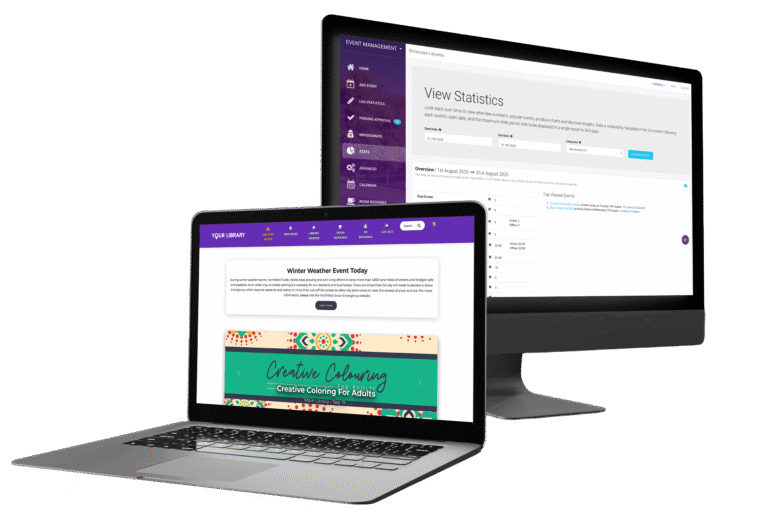
If you have questions about setup, run into something unexpected, or just want a bit of extra guidance, our team is heare to help. Reach out anytime at support@solus - we've got you covered.
Discovery Platform
We suggest starting with our online Suppport Hub. Here you will find,
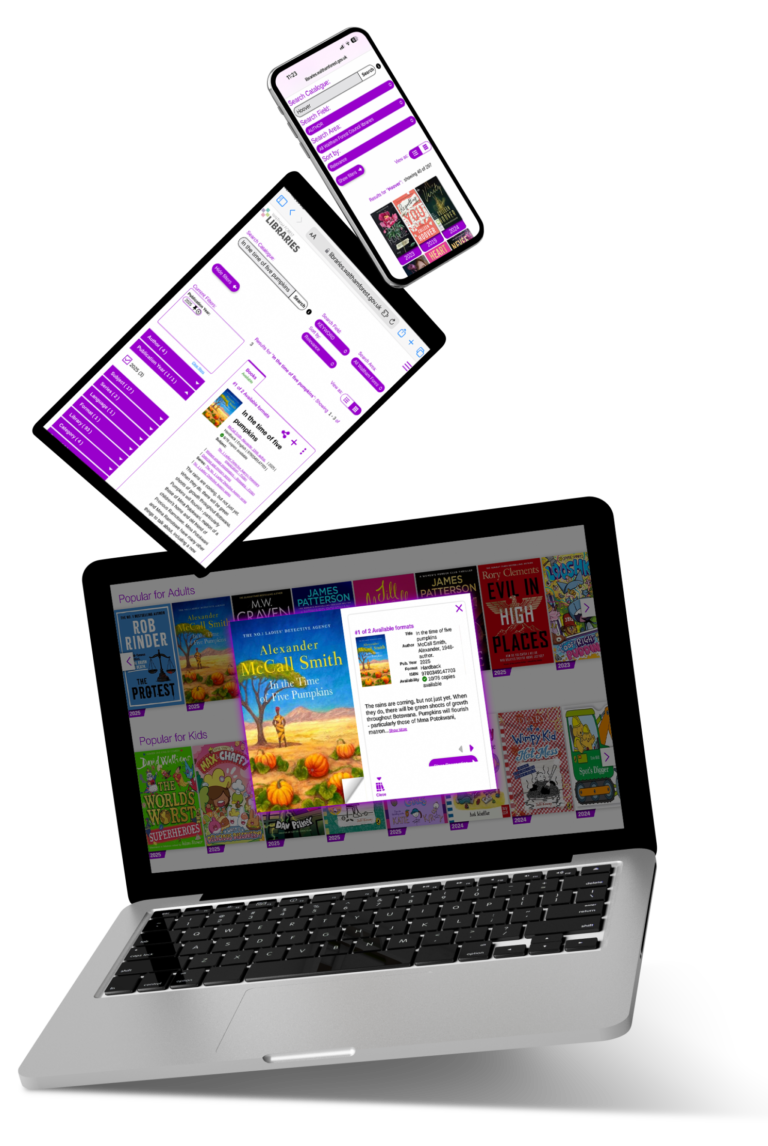
If you have questions about setup, run into something unexpected, or just want a bit of extra guidance, our team is heare to help. Reach out anytime at support@solus - we've got you covered.