Quick Summary
A library mobile app lets patrons search the catalogue, borrow and renew items, place holds and often read or listen to digital titles from a phone. Browser access reaches the same collection through the library’s website, which suits occasional users. The app is usually quicker for everyday tasks, while the browser works better on a larger screen.
- Apps suit frequent visitors, digital borrowers and people who do everything on a phone.
- Digital lending such as ebooks and audiobooks is where a dedicated app tends to win.
- Apps are usually free to download from the App Store or Google Play.
- Borrowing is tied to your local library card, so check eligibility before downloading.
- Confirm your card is valid and registered with the selected library to avoid sign-in problems.
Table of Contents
- What a Library Mobile App Does and Who It Is For
- Library App Features Compared by What You Need to Do
- Library Mobile App for iPhone and Android: Availability and Requirements
- Library App for Digital Borrowing: Eligibility, Library Cards and Fees
- Library Mobile App Download: Step-by-Step Setup
- Privacy, Accessibility and Day-to-Day Reliability
- Choosing the Right Library App for Your Patrons
- Frequently Asked Questions
What a Library Mobile App Does and Who It Is For
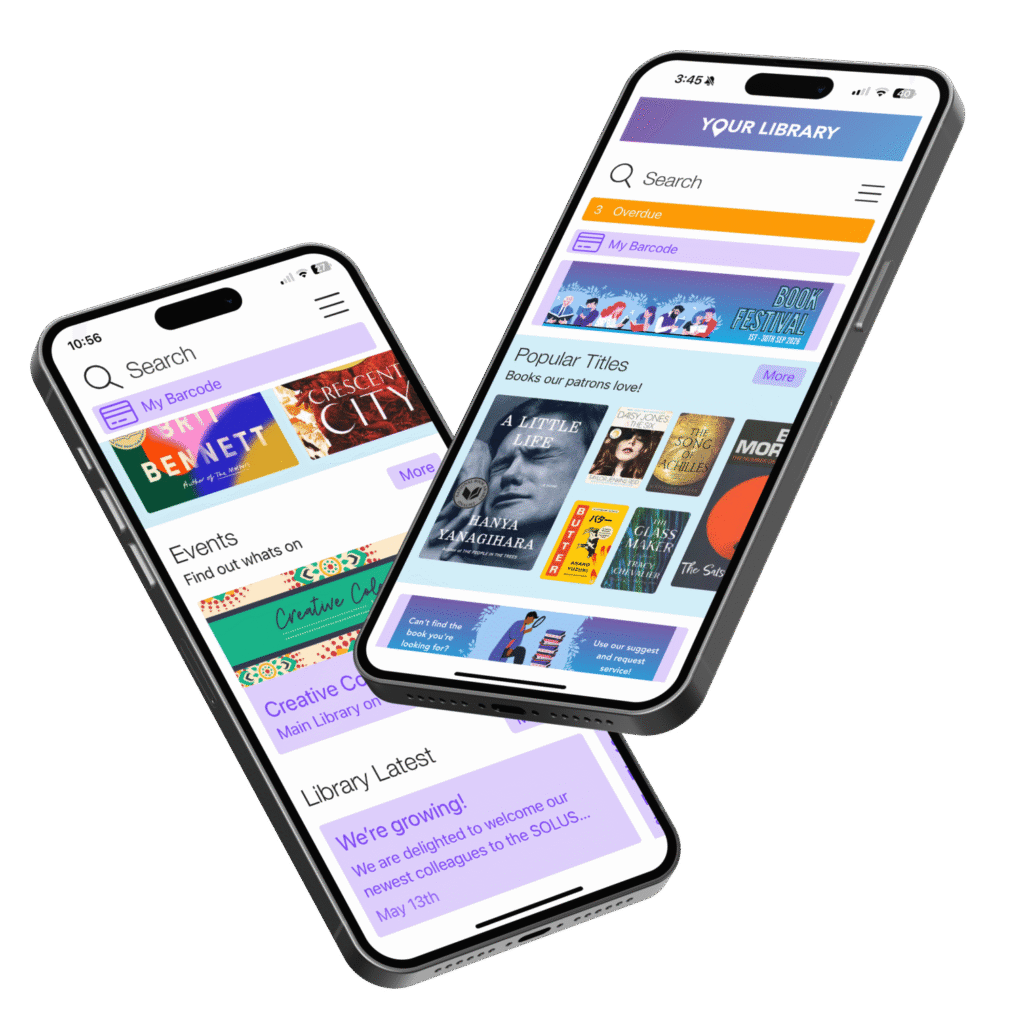
A library mobile app lets patrons search a library’s catalogue, borrow and renew items, place holds, and in many cases read or listen to digital titles from their phone. The app is essentially the library’s front door on a handset.
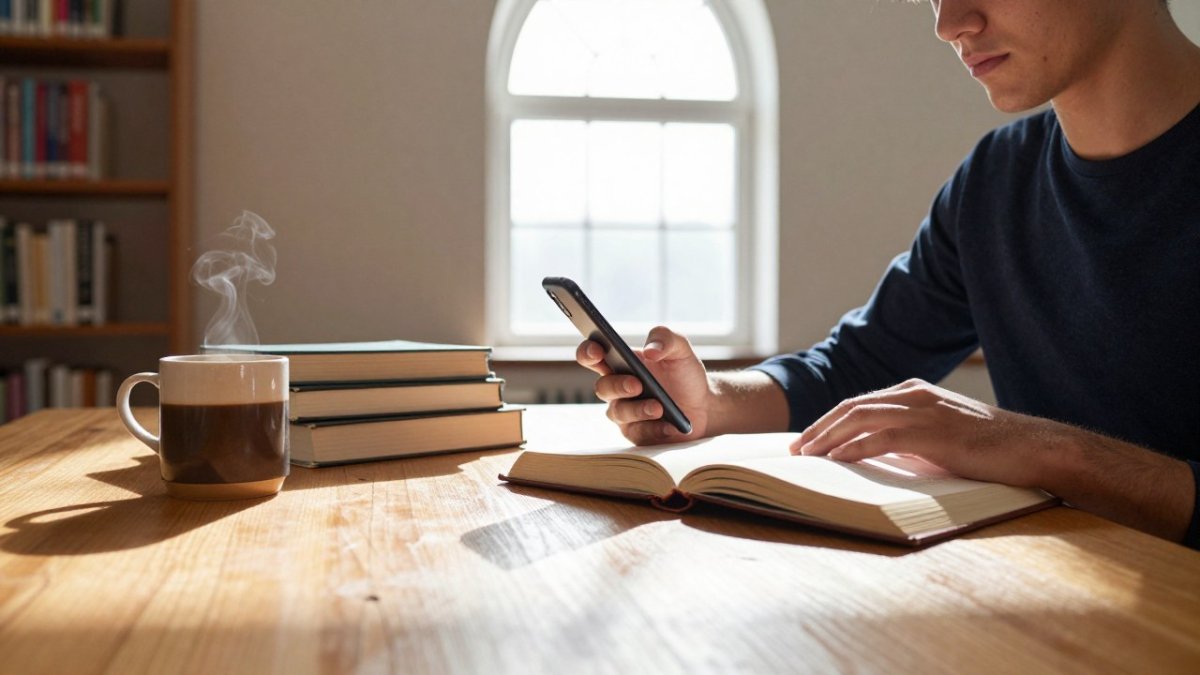
The apps are most useful for patrons who visit the library often, borrow digital titles, or manage several loans at once. They are also helpful for people who prefer to do everything on a phone and rarely sit at a computer.
The Woodward Library case study at Austin Peay State University shows how such apps are rolled out in practice (“Enhancing Access and User Engagement through the Implementation of the” by Kebede H….).
Our own library-app work at SOLUS covers the same ground from the library’s side. We build discovery and borrowing tools for public and academic libraries, and our book a discovery overview explains how patrons search, borrow and manage their accounts within the app.
Library App Features Compared by What You Need to Do
The right choice depends on the task in front of you. Some patrons want to find a title and place a hold. Others mainly want something to read on a commute. Comparing the two approaches task by task makes the trade-offs clear.
Catalogue search and holds
Searching the catalogue works in both formats, but the app usually feels quicker. Results load in a single scroll, and tapping a title can place a hold without opening a new page. Browser access still works well on a larger screen, where you can compare several records side by side.
Most library apps let you manage holds and renewals from the same screen where you search. That convenience matters most when you are standing in a branch and want to check whether a reserved copy is ready.
Ebooks, audiobooks and magazines
Digital lending is where a dedicated app tends to win. Services such as Libby describe borrowing ebooks, audiobooks and magazines from a participating local library.
Check which digital services your library subscribes to before assuming an app covers them all, and verify catalogue size and device compatibility directly with your library.
The table below sets out which approach suits each task, based on the comparison above.
| Task | Better in the app | Better in browser |
|---|---|---|
| Catalogue search and holds | Single scroll, quicker to place a hold | Easier to compare several records side by side |
| Managing holds and renewals | Managed from the same screen as search | Works well on a larger screen |
| Ebooks, audiobooks and magazines | Digital lending is where a dedicated app tends to win | Less suited to digital lending |
| Checking a reserved copy at a branch | Quick check while standing in the library | Slower on a phone |
Library Mobile App for iPhone and Android: Availability and Requirements
Most library apps are published through the Apple App Store and Google Play. Availability depends on the specific app and on your library. A library app typically requires a compatible iPhone or Android device and a current operating system, so check the store listing before downloading.
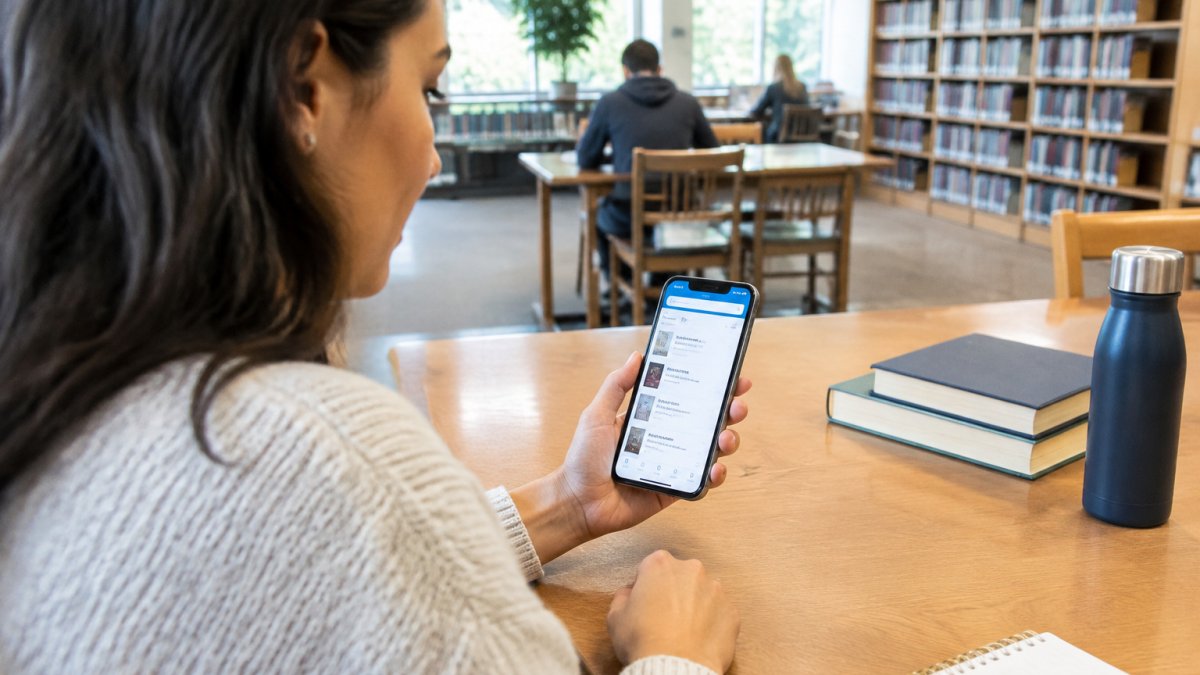
If your library offers its own branded app, it will usually appear under the library’s name in the store. Libraries that use the CAFÉ Libraries service, for example, describe their app as supporting everyday library actions online.
Library App for Digital Borrowing: Eligibility, Library Cards and Fees
Digital borrowing apps generally link access to a local library card. In practice, you sign in with your card details and the app shows what your library provides. Borrowing through many digital services happens through your local library card rather than a separate subscription. Confirm the terms with your library.
Eligibility varies by location. Digital services are often limited to residents of a particular area, and some require a card from that specific library. Before downloading, confirm that your library participates and that you hold an eligible card. Our product pages describe how library cards fit into the SOLUS app, including adding cards to Apple and Google Wallet through the Solus Library App guide.
Library Mobile App Download: Step-by-Step Setup
Setup is straightforward on both platforms, though the exact screens differ by app.
- Confirm your eligibility first. Before you search the App Store or Google Play, check whether your library offers an app and whether you need a library card from that specific system. Some apps are tied to a single library service, while others work across multiple library systems. A quick visit to your library’s website will tell you which type you are dealing with.
- Find the official app. Search your library’s name in the App Store or Google Play, and confirm the publisher before installing. Generic search terms such as “library app” return a mix of public-library services, ebook readers and book-sharing discovery tools, so the publisher name is the safest filter.
- Install and open the app. Accept the permissions it requests, and note what they cover. A library app may ask for notifications, location or camera access; each permission should map to a feature you intend to use.
- Choose your library. Most apps ask you to select a library or enter its location. If your library is not listed, the app may not be part of your library’s service, even if it is free to download.
- Sign in with your library card. Enter the card number and PIN as your library requires.
- Check your account. Confirm your loans, holds and any fees appear correctly. If the account looks empty or wrong, the sign-in may have succeeded against the wrong library system.
Watch out: an app that installs cleanly can still fail at step five if your card is expired, blocked or registered with a different library system from the one you selected.
Device requirements vary by app. Most current library apps require a recent version of iOS or Android, and some features such as offline reading or barcode scanning depend on hardware.
If your library offers its own branded app, it will usually appear under the library’s name in the store.
Privacy, Accessibility and Day-to-Day Reliability
The practical questions go beyond features: what does the app collect, who can use it, and what happens when it fails? This section considers those points.
Privacy and permissions
Your loan history and reading habits are sensitive. Public-library apps typically require a library card sign-in and may store your card number, PIN and loan history on the device. Book-sharing discovery apps may ask for location access to find nearby collections, while collection-management apps may request camera access for barcode scanning. Read the app’s privacy statement and check what it stores locally. Browser access keeps less on your phone, since you can clear history and cookies, but it still sends your details to the library’s servers.
Watch out: an app that requests location or contacts access without a clear library feature behind it deserves a second look. Permissions should map to functions you actually use.
Accessibility and inclusive design
Accessibility differs between apps and websites, and between app types. Public-library apps often inherit the phone’s built-in text size and screen reader settings, while websites depend on how the library has built its pages. Some apps offer language options, captions for video content or adjustable contrast; others do not. Test the option you intend to use with the accessibility tools you rely on before committing to it, and ask your library whether its app has been tested with screen readers.
Day-to-day reliability
Reliability depends on connection and maintenance. An app stored on your device works offline for reading downloaded titles, but catalogue searches and holds still need a connection. Browser access fails outright when the site is down. Keep the app updated, since out-of-date versions can stop working as library systems change. A common pattern is for apps to work well on launch and then degrade if the library changes its catalogue system without updating the app.
Costs, fees and borrowing limits
Most library apps are free to download, but borrowing is tied to your library card and your library’s rules. Late fees, loan limits and paid content vary by library and by service. Some digital services are free to patrons because the library pays; others may involve limits or paid content. Confirm the rules with your library rather than assuming the app’s store listing tells the whole story.
Choosing by need
If you mainly search and borrow print items, a responsive website may be enough. If you read or listen on a commute, a dedicated app with offline downloads is worth the setup. If you want to find nearby book-sharing locations, a discovery app serves a different purpose from a public-library app. Matching the app type to your need is more useful than comparing feature lists alone.
Choosing the Right Library App for Your Patrons
For a library deciding what to offer, the question is which mix of app and web access serves its patrons best. Patrons who mainly search and borrow print items may be well served by a responsive website. Libraries with strong digital collections, or with many students and commuters, may find a dedicated app useful.
Academic libraries have particular needs, such as integration with existing systems and support for varied user groups. Our academic library app option is built for colleges, universities and research libraries and is available in 30 languages. Whatever you choose, test the experience from a patron’s phone before launch, and ask staff to report the problems they see most often.
Next step: If you are weighing an app against your current browser setup, start by listing the three tasks your patrons do most often. Test each one on both options, then decide which experience serves them better. SOLUS can show you how an app would look for your library, so book a demo to see it working with your own catalogue.
Frequently Asked Questions
What is the best free library app?
Several library apps are free to download, including Libby, which lets patrons borrow ebooks, audiobooks and magazines from a participating local library. The app itself costs nothing, but borrowing depends on your library offering access through it. The best choice is usually the app your own library promotes, because that is the one connected to your card and collection. Check your library’s website for the official app name before downloading.
Can I use a library app without a library card?
In most cases, no. Many digital library apps ask you to enter your local library card details to unlock borrowing, because access is tied to a participating library. Some apps allow you to browse or discover content without signing in, but borrowing and holds generally require an active card. If you do not have a card, most libraries will register you, often online, so you can then sign in to the app. Eligibility rules differ by library, so check with yours.
Are library mobile apps available for iPhone and Android?
Most major library apps are available for both iPhone and Android. Availability can still depend on your device’s operating-system version, so check the app store listing for minimum requirements before installing. If your library has its own branded app, the library’s website will link to the correct download page for each platform.
How can a library choose a mobile app for its patrons?
Start by listing what patrons actually need to do, such as searching the catalogue, placing holds, borrowing digital titles and renewing loans. Then check whether the app integrates with your existing library management system, since disruptive migrations are a common concern. Ask vendors for references from libraries of a similar size, and compare how each option handles privacy permissions and accessibility. To book a demonstration or request a quote, visit the SOLUS website.